
Videos are a great way to showcase content on your website! However, using a single video on your page can make navigation difficult. The best solution is to use a video gallery — and we’ll show you how to create one for your website! It’s very easy.
We recommend these two excellent video gallery options:
Both are reliable, responsive, and deliver a great user experience.
Great! Both are reliable, responsive, deliver a great user experience, and are indeed very attractive ways to display YouTube and Vimeo videos beautifully on a WordPress site.
In tbis tutorial you’ll learn how to add a YouTube and Vimeo video gallery in WordPress using the PeLightbox Gallery Slider plugin.
This demo is shown using the Ella Parallax One Page WordPress Theme premium theme, but you can use any WordPress theme.
This demo we using the Ella One Page Parallax WordPress Theme, but you can use any WordPress Theme
1. YouTube & Vimeo Video Gallery with Lightbox
This is a full gallery layout when clicking a thumbnail opens the video in a clean lightbox popup
“Best for: pages where you want to easily show visitors multiple videos, such as a video library, portfolio, tutorials, and more.”
📺 Follow the step-by-step process in this video:
📺 Video Tutorial 2 :
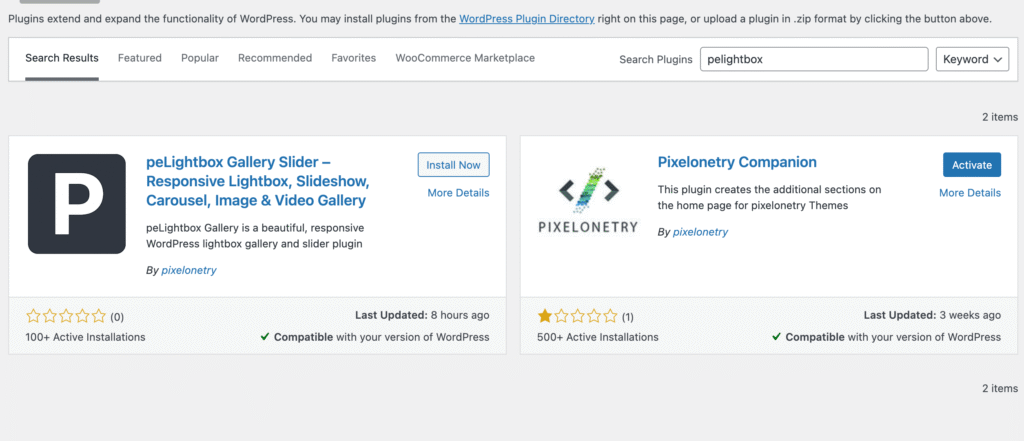
First, you need to install the PeLightbox Gallery Slider plugin.
Free version:
https://wordpress.org/plugins/pelightbox-gallery-slider/
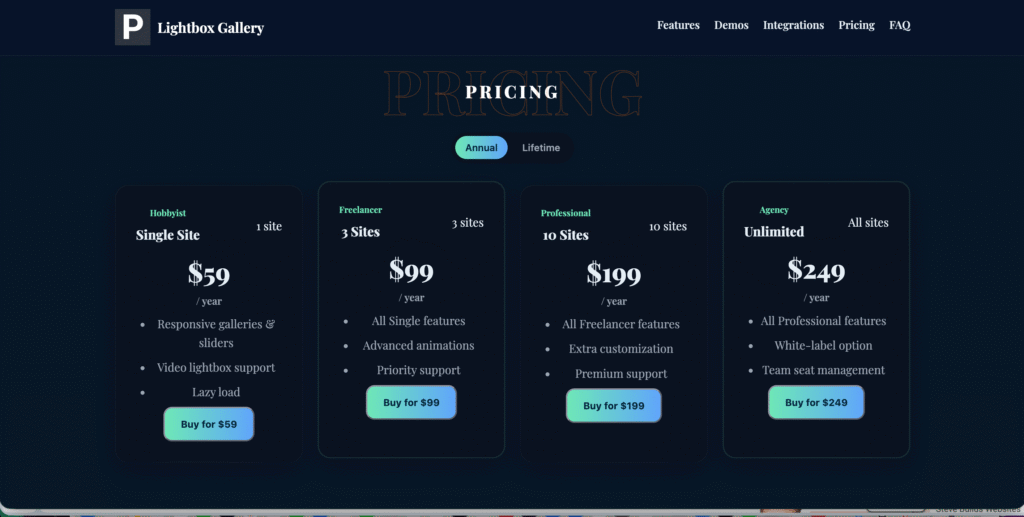
Pro version:
https://pixelonetry.com/pelightbox/
The Pro version includes additional layouts, animations, WooCommerce support, and advanced gallery features.
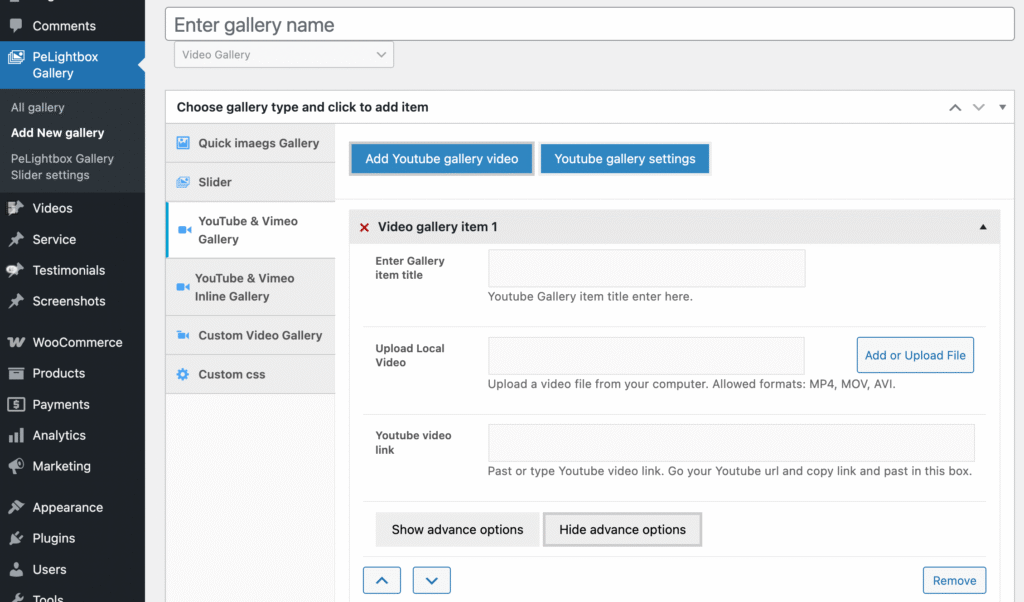
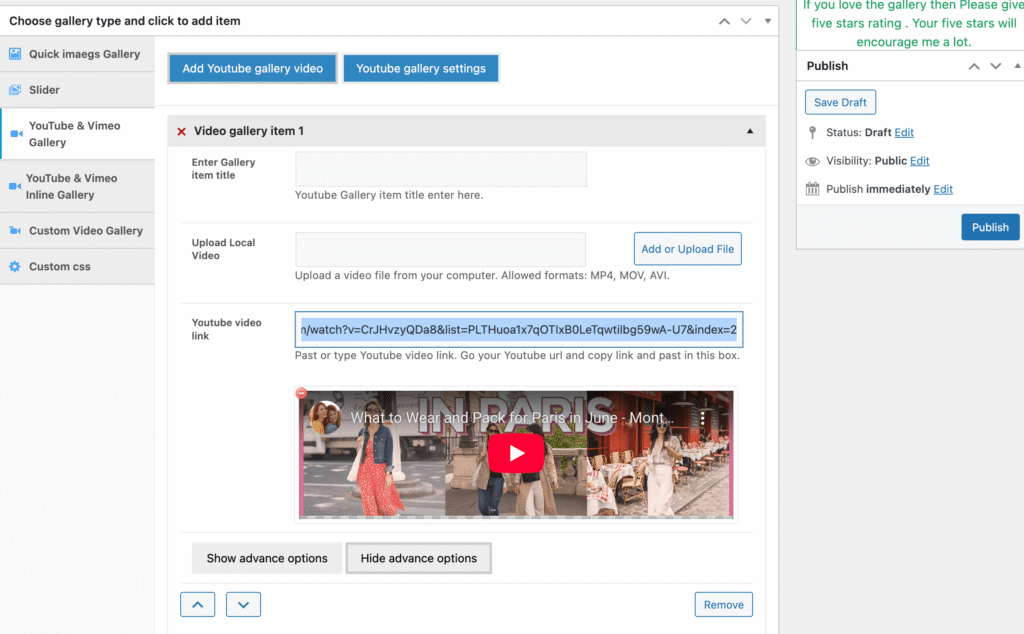
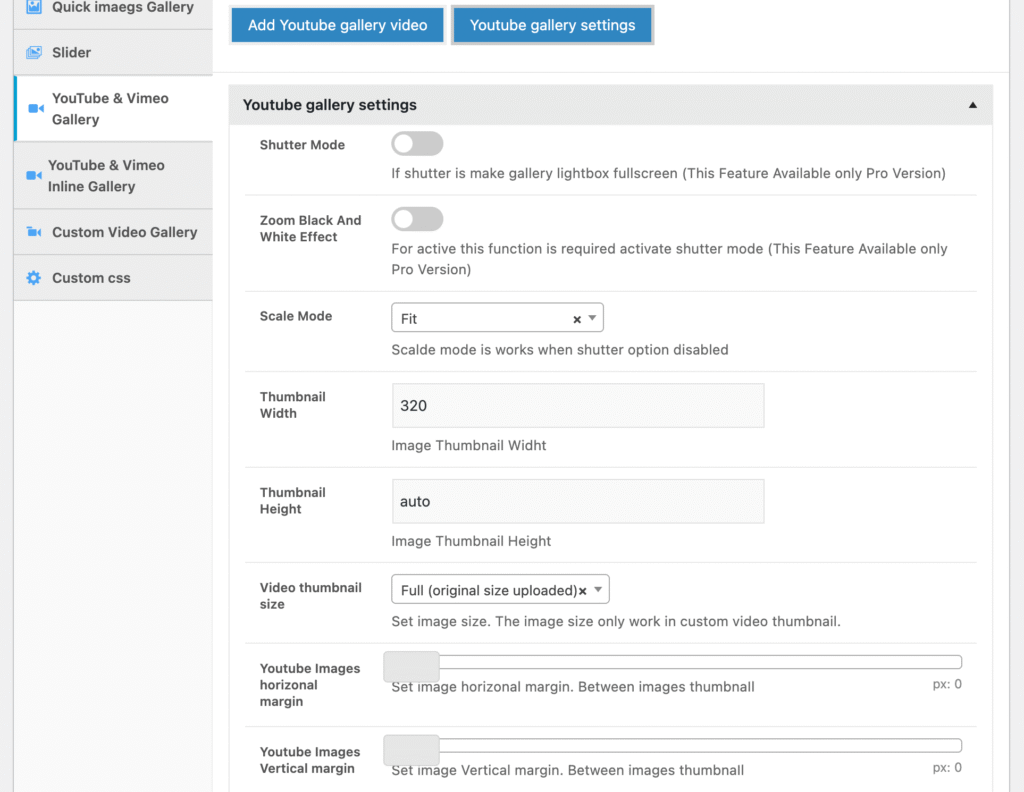
After creating your gallery:
[pelightbox id="123"]).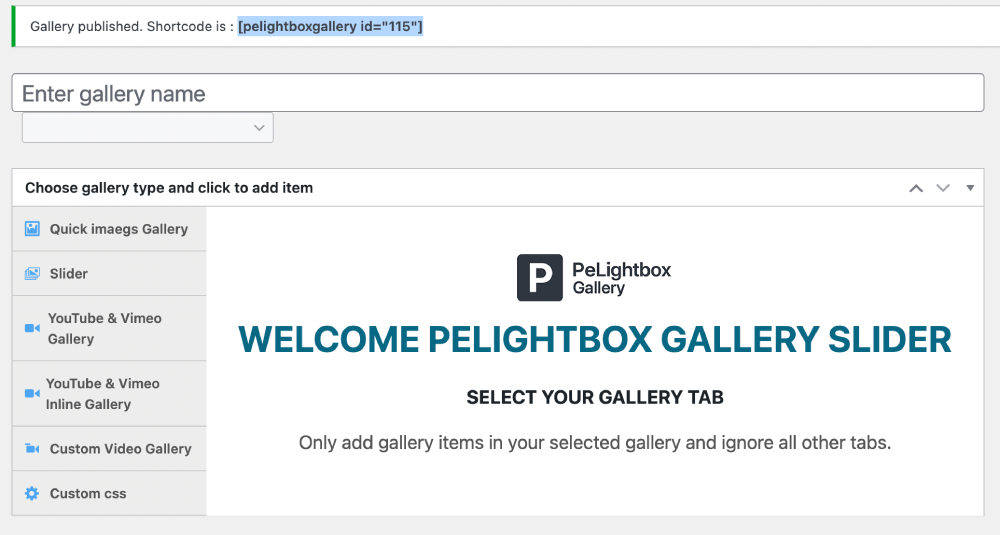
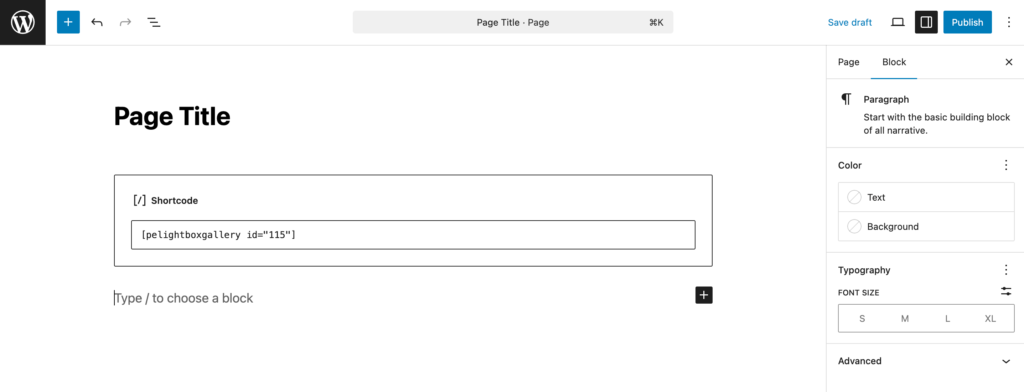
Your gallery will now display video thumbnails inline. Visitors can click any thumbnail to play videos directly in the page.
Once added, your WordPress site will show a fully responsive inline video gallery. The gallery works with:
The PeLightbox Pro version unlocks advanced features like:
With the plugin, you can organize your videos in a professional way, make your site more interactive, and provide a better user experience

We're are pixelonetry creative studio! we make great digital assets for professionals...