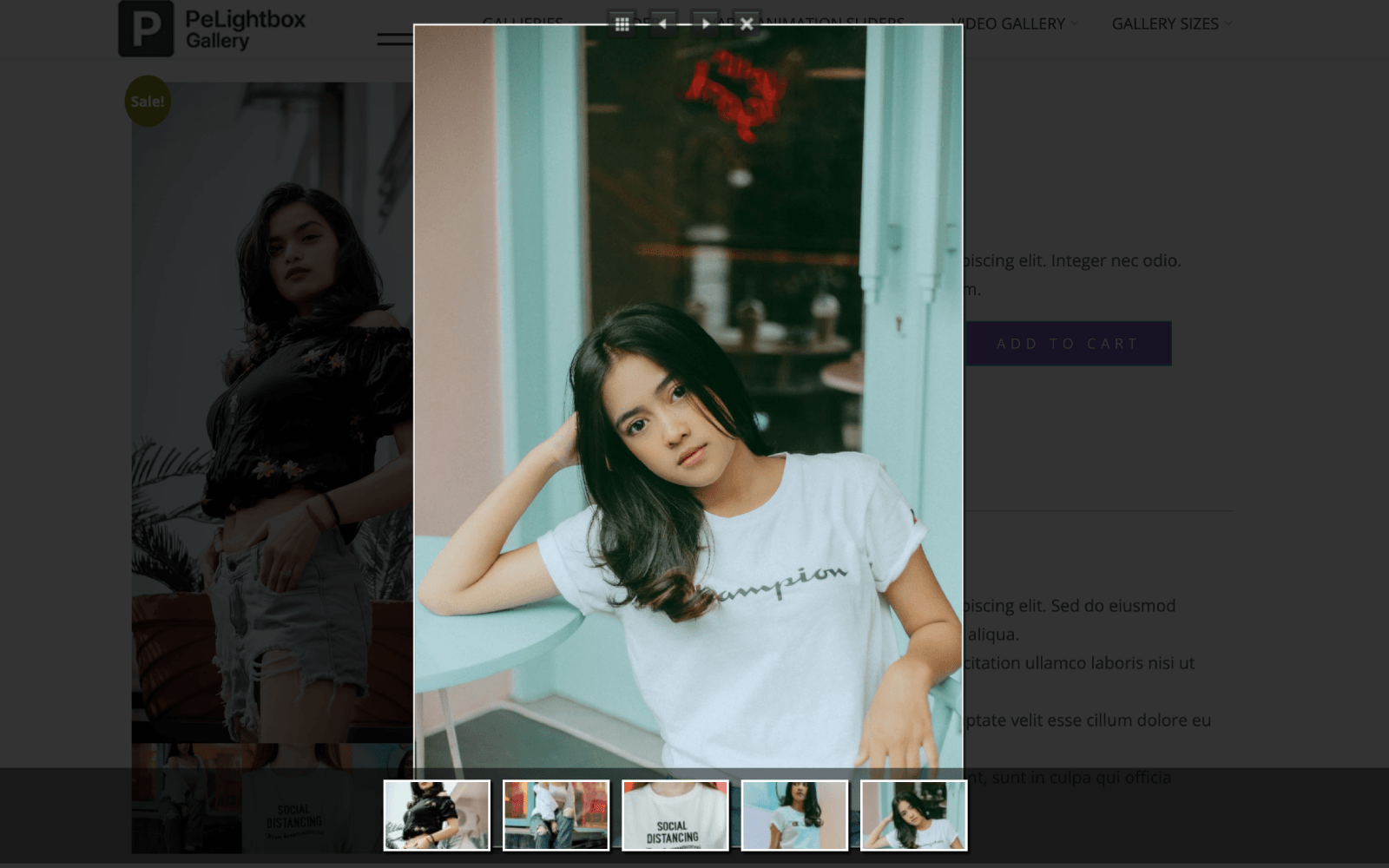
WooCommerce allows store owners to display multiple images using its built-in product gallery feature. However, WooCommerce’s default options only support a basic lightbox popup. To get more attractive effects, you can use a plugin like PeLightbox.
In this guide, you’ll learn how to add images to a WooCommerce product gallery and enable a lightbox viewer using a lightbox plugin.
Video Tutorial
Watch the full tutorial below to see how the gallery images open in a lightbox on the product page.
This plugin enables a lightbox popup for images and videos and can be connected to the default WooCommerce product gallery.
First, you need to add product images using the default WooCommerce gallery.
Follow these steps:
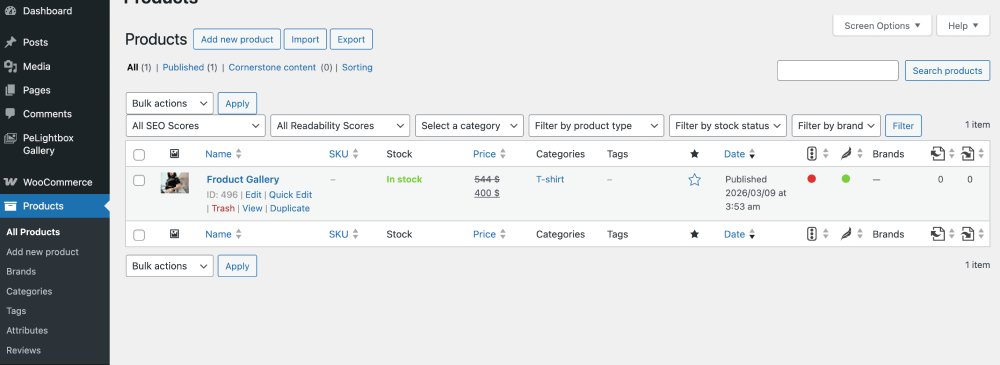
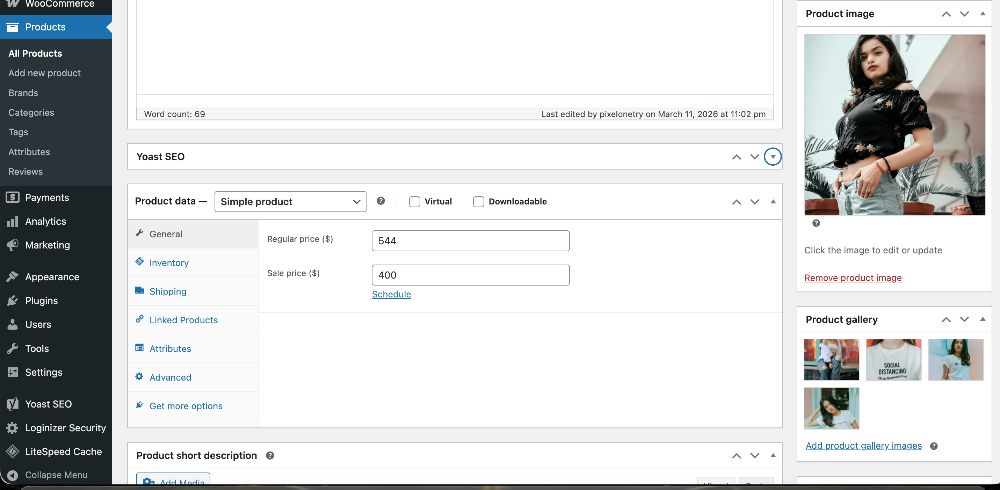
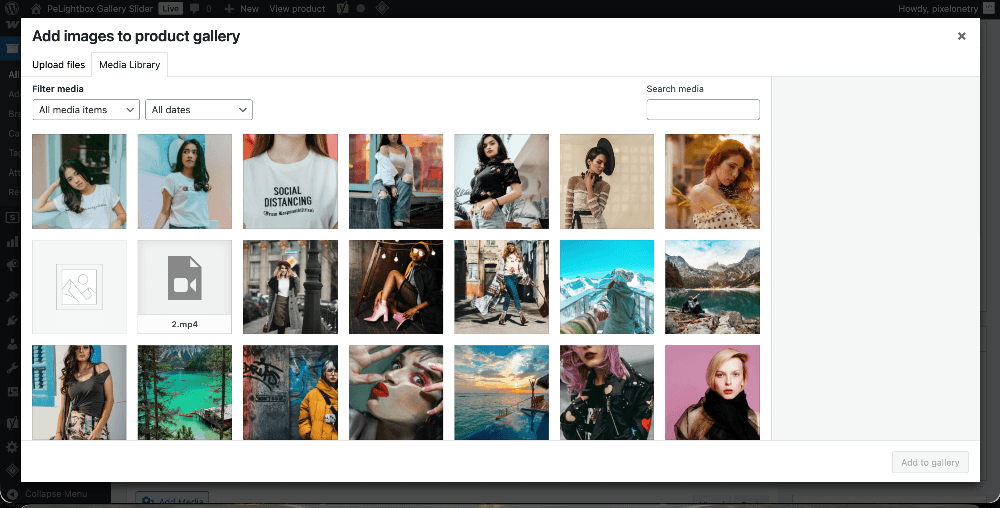
Once the images are added, they will appear in the single product gallery.
Before enabling the lightbox effect, you need to install PeLightbox:
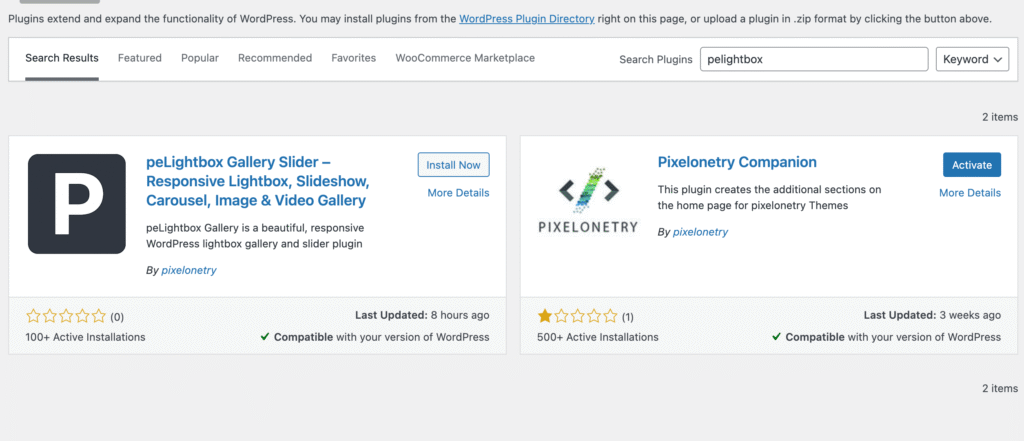
After installing and activating PeLightbox Gallery Slider, the plugin can automatically apply a lightbox effect to the WooCommerce product gallery images.
When a visitor clicks on a product image:
This improves the visual presentation of your product images.
After completing these steps:
This creates a more modern and interactive product page experience for your WooCommerce store.

We're are pixelonetry creative studio! we make great digital assets for professionals...