How to Create a Masonry Gallery in WordPress

If you want to display your images in a modern Pinterest-style layout, a masonry gallery is one of the best options for WordPress websites. With the peLightbox Gallery Slider plugin, you can easily create responsive masonry galleries with lightbox effects, sliders, and video support — without writing any code.
In this tutorial, you’ll learn how to create a masonry gallery step-by-step using WordPress and the peLightbox Gallery Slider plugin.
A masonry gallery arranges images in columns with different heights while keeping the layout balanced and visually appealing. Unlike standard grid galleries, masonry layouts remove empty gaps between images.
This style is commonly used for:
The plugin supports masonry layouts along with responsive lightbox popups and mobile-friendly navigation.
The plugin includes several gallery and slider options such as:
It also works well with popular page builders including Elementor and WPBakery.
First, install the plugin from your WordPress dashboard.
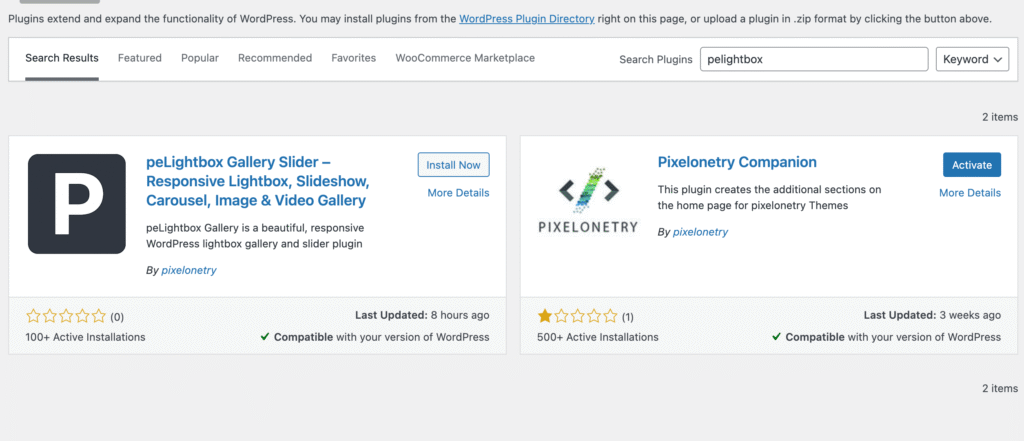
You can also download it directly from:
peLightbox Gallery Slider on WordPress.org
After activation:
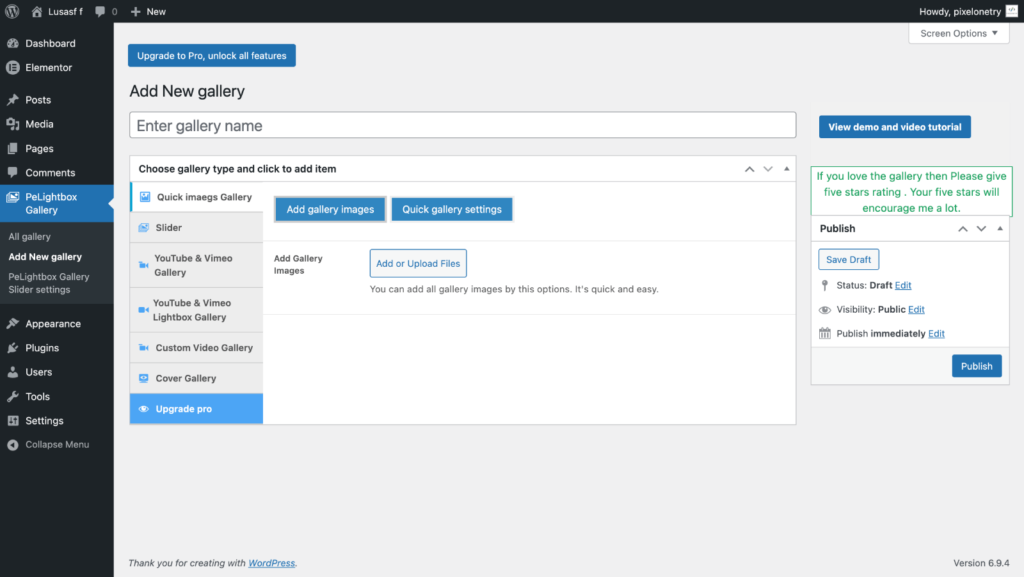
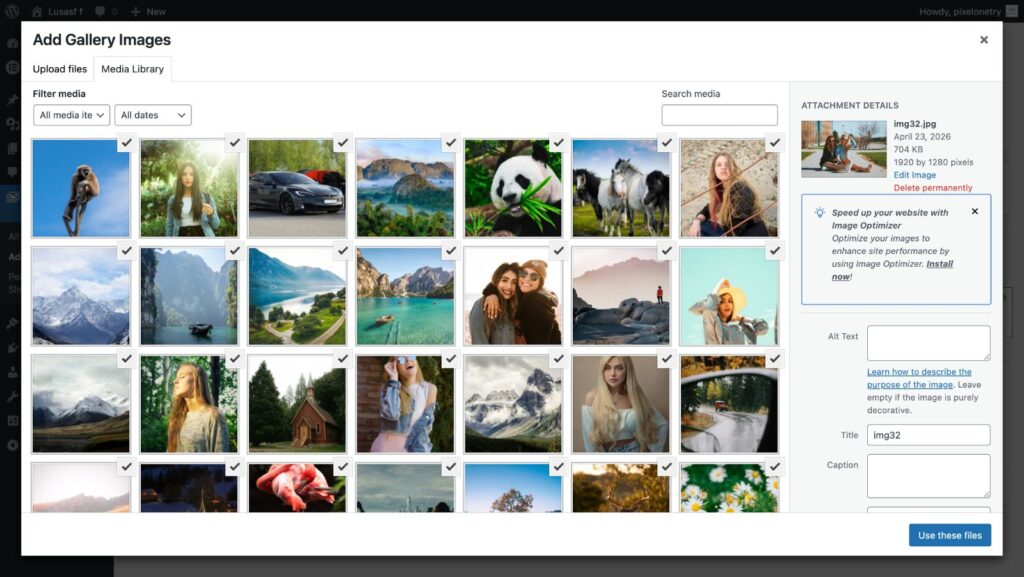
The plugin allows unlimited image galleries and supports responsive layouts.
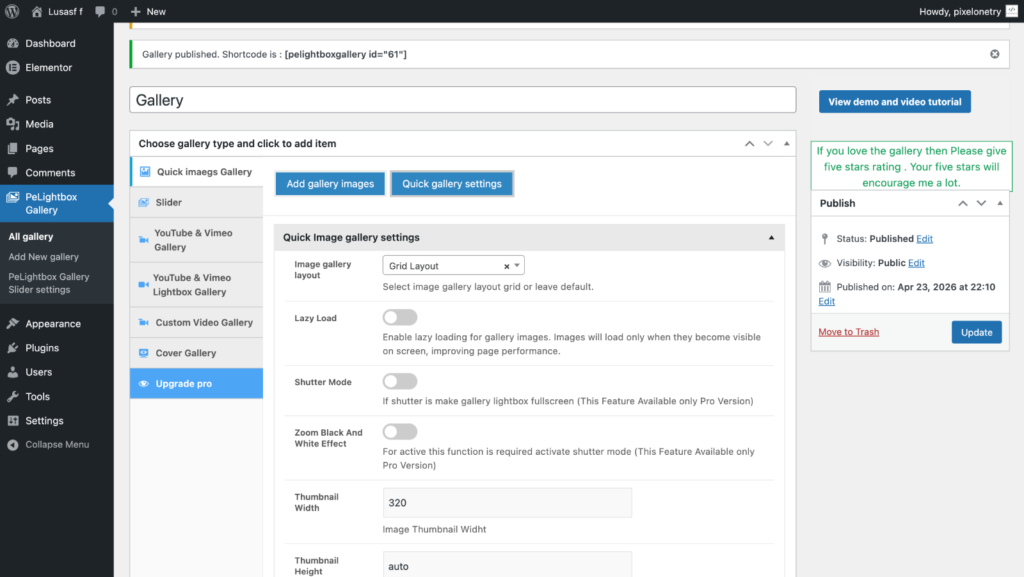
The default gallery layout is Masonry, so in most cases you don’t need to change the layout type.
Inside the gallery settings you can configure options such as:
These options allow you to adjust the appearance of your masonry gallery and control how images are displayed.
The masonry layout automatically arranges images with different heights into balanced columns, creating a clean and dynamic gallery.
One of the best features of the peLightbox Gallery Slider plugin is its built-in lightbox functionality, allowing visitors to view images in a fullscreen popup.
Available features include:
Free Version
Pro Version Features
These features create a smooth viewing experience on both desktop and mobile devices.
Once your gallery is ready:
Example:
[pelightboxgallery id="49"]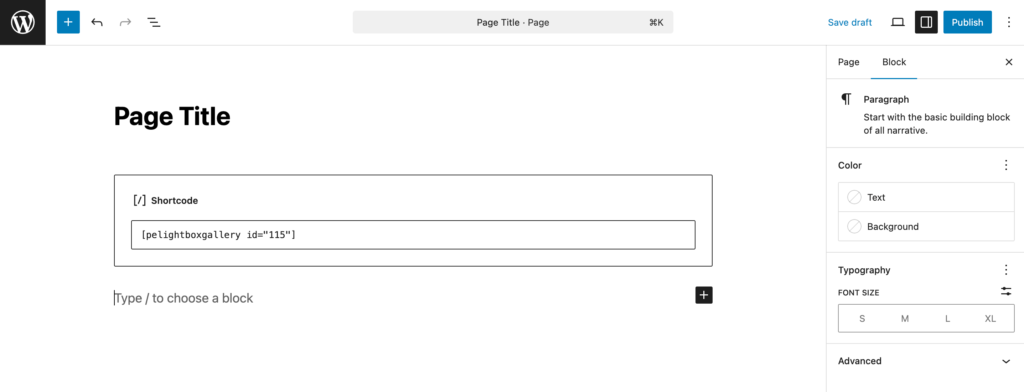
Masonry galleries look more dynamic when images have different heights.
Compress images before uploading to improve loading speed.
The plugin supports lazy loading for faster performance.
Captions improve SEO and provide better context for visitors.
The gallery is fully responsive and supports:
This ensures your masonry gallery looks great on all devices.

We're are pixelonetry creative studio! we make great digital assets for professionals...